WRDS MCP Setup
This page walks you through installing and connecting the wrds-mcp server before Module 4. Finish it before you start Module 4’s lab, and leave yourself time to troubleshoot. Module 1’s homework already asked you to confirm your WRDS account and Duo enrollment. Module 4’s lab assumes the connection already works.
What you need before starting
| Requirement | Notes |
|---|---|
| Active WRDS account | Your own institutional account. You must know your username and password. |
| Duo MFA enrolled | Enrolled on your WRDS account specifically, not just your university’s Duo. |
| Python 3.10 or later | Check with python3 --version. |
| Claude Code or Cursor | Either works; registration steps differ slightly (covered in Step 4). |
The barrios-skills repository |
Clone it from https://github.com/Barrios88/barrios-skills (command in Step 1). It contains the mcp/wrds-mcp/ package and the tunnel/ scripts this page uses. |
You will approve one Duo push at the start of each work session. After that, every query you send through Claude Code or Cursor goes through the persistent tunnel, and you will not get another MFA prompt for the rest of that session.
Step 1 — Install wrds-mcp into a dedicated virtual environment
Do not install into your system Python or into an environment that other projects use. From a terminal, in the folder where you keep code (not inside a research project):
git clone https://github.com/Barrios88/barrios-skills.git
cd barrios-skills/mcp/wrds-mcp
python3 -m venv ~/.wrds-mcp-env
source ~/.wrds-mcp-env/bin/activate
pip install -e .
Confirm the entry point is on your path:
which wrds-mcp
# Expected: /Users/YOUR_USER/.wrds-mcp-env/bin/wrds-mcp
Locked fact: the package uses paramiko, a pure-Python SSH library, for the Duo tunnel.
sshpassis not required and cannot log in to the WRDS bastion. The bastion accepts only keyboard-interactive authentication, which is how Duo is delivered, andsshpassdoes not support that method.paramikoinstalls automatically as a package dependency. If an older doc tells you tobrew install sshpass, skip that line.
Step 2 — Configure credentials safely
Never put a real password in a git-tracked file, and never type one directly into a prompt to Claude. Keep the credential file outside every project folder. The path below, in your home directory, does that. If you ever keep a copy inside a project, add it to .gitignore before you create it, not after.
Recommended: private env file
Create the file in your home directory with placeholder values, then lock down its permissions:
cat > ~/.wrds-mcp.env <<'EOF'
# ~/.wrds-mcp.env
# NEVER commit this file with real values.
export WRDS_USERNAME='YOUR_WRDS_USERNAME'
export WRDS_PASSWORD='YOUR_WRDS_PASSWORD'
export WRDS_TUNNEL_PORT=49600
export WRDS_LOCAL_PORT=49600
export WRDS_DUO_RESPONSE=push
# export WRDS_DOWNLOAD_DIR=~/wrds_data
EOF
chmod 600 ~/.wrds-mcp.env
Then open ~/.wrds-mcp.env in any editor and replace the two placeholders with your own username and password. The same template is in the Module 4 lab starter pack as env_example.txt, with placeholder values only; you can copy that file to ~/.wrds-mcp.env instead. Keep export at the start of every line, and keep the single quotes around the password so characters such as $ or ! are read literally. Without it, sourcing the file sets the values in your shell but does not pass them on to tunnel_up.sh, and the tunnel refuses to start.
Source it at the start of each work session:
source ~/.wrds-mcp.envAlternative: export directly in your shell
export WRDS_USERNAME='YOUR_WRDS_USERNAME'
export WRDS_PASSWORD='YOUR_WRDS_PASSWORD'   # single quotes, so $ or ! in a password is read literally
Both approaches work with the tunnel scripts below. The MCP server reads credentials from its environment when it runs; they are not part of your conversation with Claude. Step 4 does save them in one place: your user-level MCP configuration (~/.claude.json for Claude Code, ~/.cursor/mcp.json for Cursor). Both files sit in your home directory, outside any project. Keep them private, never copy them into a repository, and consider a Read deny rule for them (Module 5).
Environment variables reference
| Variable | Required | Default | Purpose |
|---|---|---|---|
WRDS_USERNAME |
Yes | — | Your WRDS login |
WRDS_PASSWORD |
Yes | — | Your WRDS password |
WRDS_TUNNEL_PORT |
No | 49600 |
Local port the MCP server connects through |
WRDS_LOCAL_PORT |
No | 49600 |
Local port the tunnel daemon binds to; set it to the same value as WRDS_TUNNEL_PORT |
WRDS_DUO_RESPONSE |
No | push |
How to answer Duo: push, phone, or a passcode |
WRDS_PYBIN |
No | python3 |
Python binary with paramiko installed; point this at ~/.wrds-mcp-env/bin/python3 if that’s where you installed the package |
WRDS_TUNNEL_STATE_DIR |
No | ~/.wrds-tunnel/ |
Override PID/log directory |
WRDS_DOWNLOAD_DIR |
No | ~/wrds_data |
Where wrds_download_data saves extracts. The course uses this location throughout. |
Step 3 — Start the persistent Duo tunnel (once per session)
The tunnel daemon opens one SSH session to WRDS-cloud and holds it open for the rest of your working session. You approve Duo once, and every later MCP query reuses that connection.
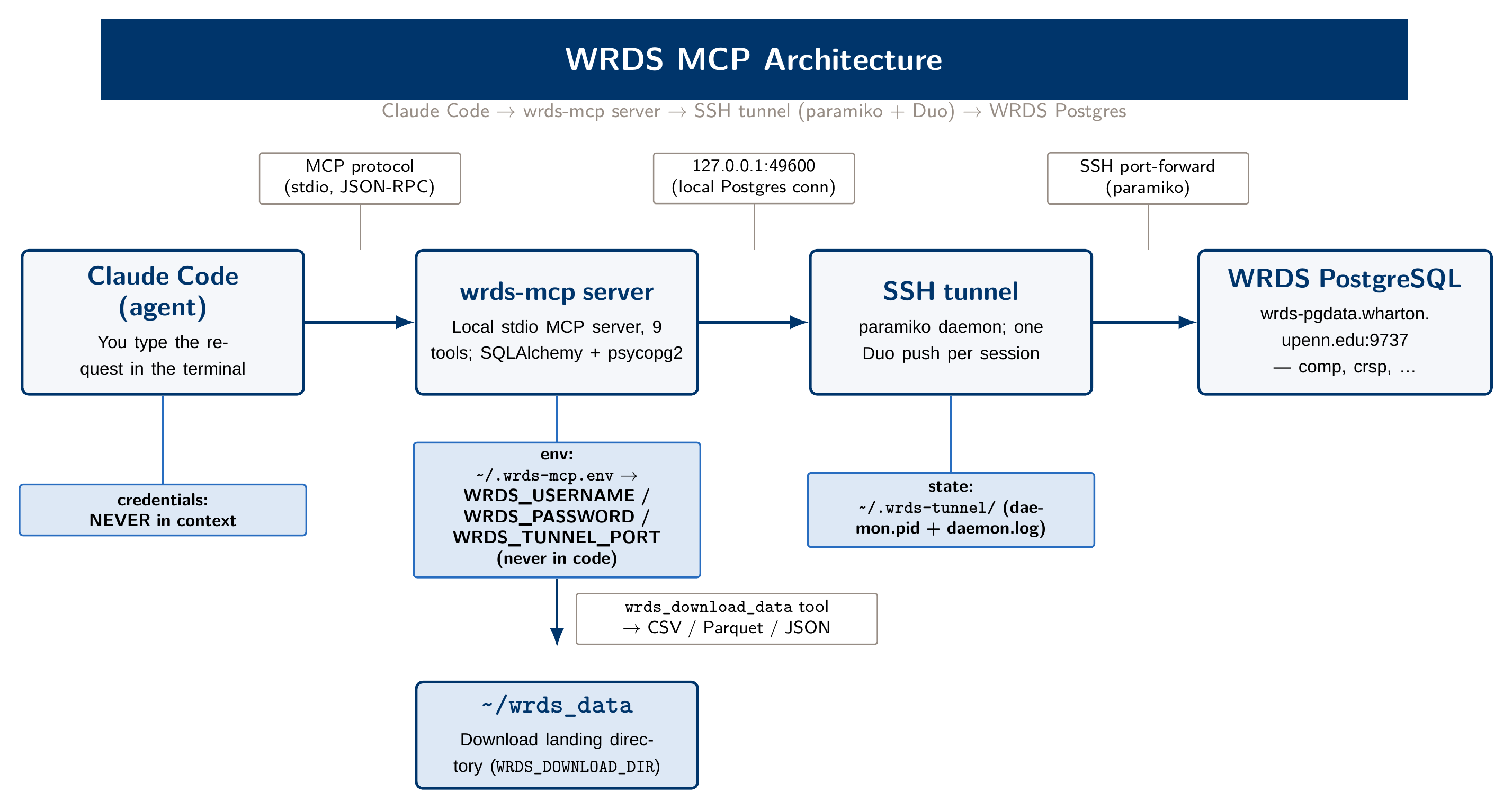
cd barrios-skills/mcp/wrds-mcp/tunnel
source ~/.wrds-mcp.env          # ensure credentials are exported
bash tunnel_up.sh
Approve the Duo push on your phone within about 30 seconds. You should see:
starting tunnel daemon (paramiko) on port 49600
  log: /Users/YOUR_USER/.wrds-tunnel/daemon.log
  approve Duo Push on your phone within ~30s
tunnel up on 127.0.0.1:49600 (pid XXXXX)
Check status at any time:
bash tunnel_status.shShut the tunnel down at the end of every session. This is required. An open tunnel is a logged-in connection to a licensed institutional resource, left open with no one using it. Make shutting it down the last thing you do:
bash tunnel_down.shStart the tunnel first. It must be running before you send your first MCP query. If Claude Code reports nothing listening on WRDS_TUNNEL_PORT, run tunnel_up.sh again before troubleshooting anything else. Tunnel logs and PID live at ~/.wrds-tunnel/daemon.log and ~/.wrds-tunnel/daemon.pid.
Step 4 — Register the MCP server
Claude Code
Run this once from any terminal. It saves your credentials in your user-level MCP configuration (~/.claude.json), not inside any project directory. Claude Code’s own options come first; everything after -- is the command that starts the server:
source ~/.wrds-mcp.env   # loads your values, so the password is never typed on the command line
claude mcp add --scope user \
  --env WRDS_USERNAME="$WRDS_USERNAME" \
  --env WRDS_PASSWORD="$WRDS_PASSWORD" \
  --env WRDS_TUNNEL_PORT=49600 \
  --transport stdio wrds-mcp -- ~/.wrds-mcp-env/bin/wrds-mcp
Inspect the registration:
claude mcp get wrds-mcpCursor
Edit ~/.cursor/mcp.json (create it if it doesn’t exist yet):
{
  "mcpServers": {
    "wrds-mcp": {
      "command": "/Users/YOUR_MACOS_USERNAME/.wrds-mcp-env/bin/wrds-mcp",
      "args": [],
      "env": {
        "WRDS_USERNAME": "YOUR_WRDS_USERNAME",
        "WRDS_PASSWORD": "YOUR_WRDS_PASSWORD",
        "WRDS_TUNNEL_PORT": "49600"
      }
    }
  }
}
Replace YOUR_MACOS_USERNAME with your actual username (run whoami to confirm), then restart Cursor. Keep the password inside the double quotes; if it contains a " or a \, put a backslash before that character. On Linux or WSL the path starts with /home/ instead of /Users/.
Step 5 — Verify the setup
With the tunnel running, ask Claude Code or Cursor:
“Use wrds-mcp to list the available WRDS libraries.”
If everything is connected, you get back a non-empty list of schema names (comp, crsp, tr_insiders, and similar). That confirms the whole chain works: agent → MCP → tunnel → WRDS Postgres.
You can also confirm Compustat access specifically:
“Use wrds_describe_table to describe comp.funda.”
A response with column names and types confirms you can reach funda, the table Module 4’s lab pulls from.
Troubleshooting
| Symptom | Likely cause | Fix |
|---|---|---|
WRDS_USERNAME and WRDS_PASSWORD must be exported |
Credentials not exported when the tunnel script ran | Check that every line of ~/.wrds-mcp.env starts with export, run source ~/.wrds-mcp.env, then bash tunnel_up.sh |
authentication failed |
Wrong username/password, or an inactive WRDS account | Double-check credentials at the WRDS site; contact WRDS support if the account is locked |
| Duo push never arrived / timed out | Not approved within ~30 seconds | Re-run tunnel_up.sh and approve faster; check phone signal |
connection refused on port 49600 |
Tunnel is not running | Run bash tunnel_up.sh |
Port already in use warning |
Stale tunnel process on the port | Run bash tunnel_down.sh, then bash tunnel_up.sh |
MCP shows wrds-mcp registered but tools fail |
WRDS_TUNNEL_PORT missing from the MCP config |
Re-register with --env WRDS_TUNNEL_PORT=49600; confirm with claude mcp get wrds-mcp |
| Queries succeed but the data looks wrong | Missing Compustat iron-law filters | Apply all four filters from the module page: check indfmt, datafmt, popsrc, consol |
wrds-mcp: command not found |
Virtual environment not activated, or wrong path in config | Confirm ~/.wrds-mcp-env/bin/wrds-mcp exists; use the full path in your MCP config |
| Tunnel drops mid-session | Paramiko auto-reconnects, but you may need to re-approve Duo | Re-run tunnel_up.sh; check ~/.wrds-tunnel/daemon.log |
For daemon-level diagnostics:
tail -50 ~/.wrds-tunnel/daemon.logBefore you close this page
Confirm all of the following before you start Module 4’s lab:
If any item above is not done, work through the troubleshooting table first. You can do Module 4’s lab on the fallback track in the meantime and switch to the live track once the connection works.